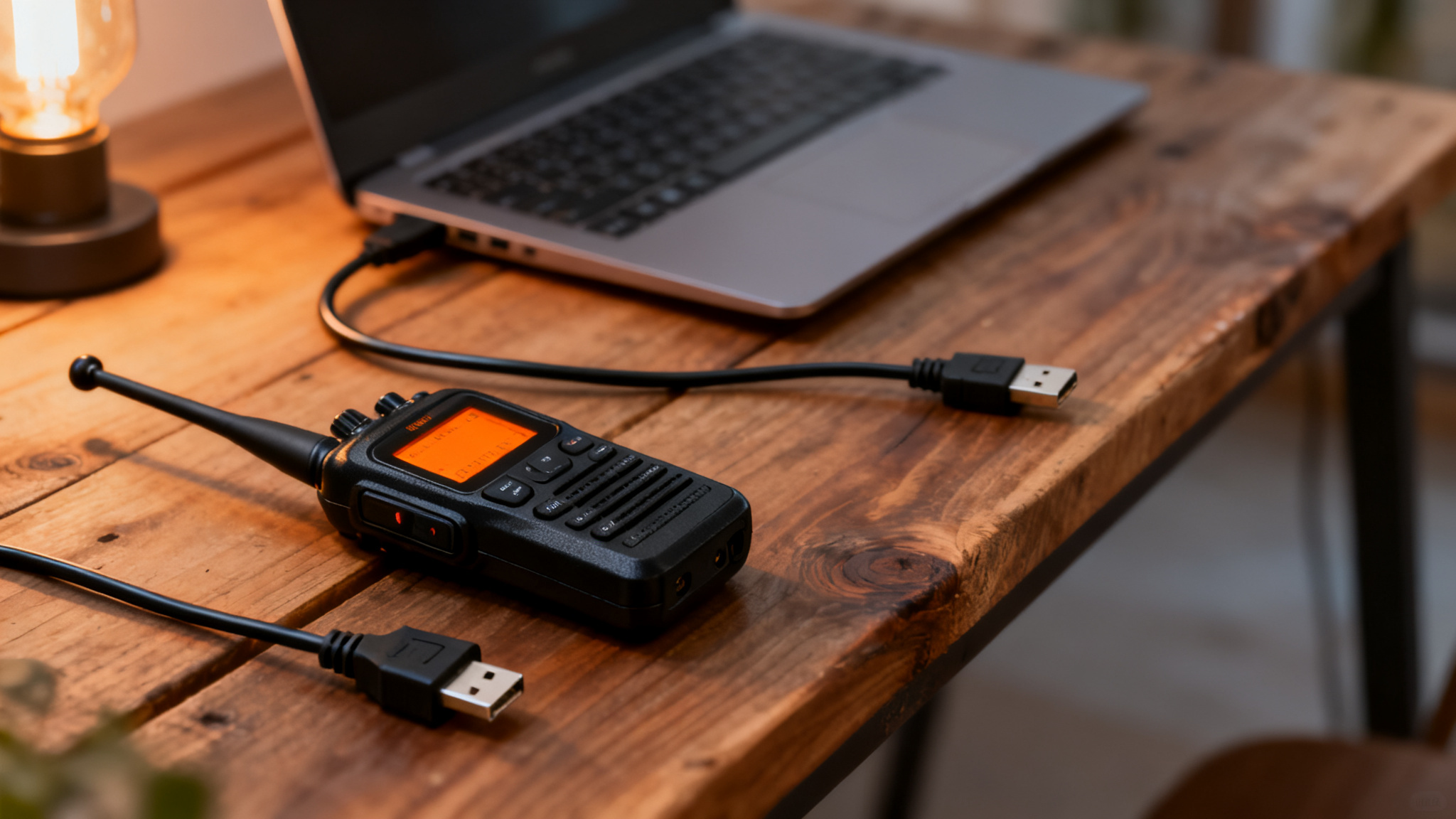
Learning how to program a Baofeng radio is a rite of passage. You unbox a radio that costs less than a tank of fuel, press a few buttons, and suddenly you’re staring at a screen that says “SFT-D” and wondering what you did to deserve this. This guide walks you through the easy way (a computer and a free program) and the hard way (the keypad), so you can get your local repeaters loaded and actually start talking.
Baofeng manuals read like they were translated twice and then run through a blender. You’re not the problem. The manual is.
The Two Ways to Program a Baofeng
You’ve got two options, and one of them is much kinder to your blood pressure.
- With a computer (recommended): You plug the radio into your PC with a programming cable, type your channels into a spreadsheet-style screen, and send them to the radio in one go. Twenty channels take about ten minutes.
- By hand on the keypad: You punch in each channel using the radio’s menu system. It works, and it’s handy in the field, but doing more than two or three channels this way is a test of patience.
Learn the computer method for your main setup. Learn the keypad method for emergencies, like when you’re at a campsite and realise you forgot the local repeater.
What You Need Before You Start
Here’s the short shopping list:
- A programming cable. It has a USB plug on one end and a two-pin plug (the same kind that goes into the speaker and mic jacks) on the other.
- CHIRP. This is free software that programs hundreds of radio models, Baofengs included. Download it from the official CHIRP website, not a random download page.
- A list of frequencies. Look up the repeaters near you on RepeaterBook or your local club’s website. For each one you’ll want the frequency, the offset, and the tone.
A word about cables, because this is where most people lose their minds. Lots of cheap cables use fake copies of a chip that newer versions of Windows refuse to talk to. The cable looks fine, the computer sees it, and nothing works. Buy a cable that says it uses a genuine FTDI chip. It costs a few dollars more and saves you an evening of swearing.
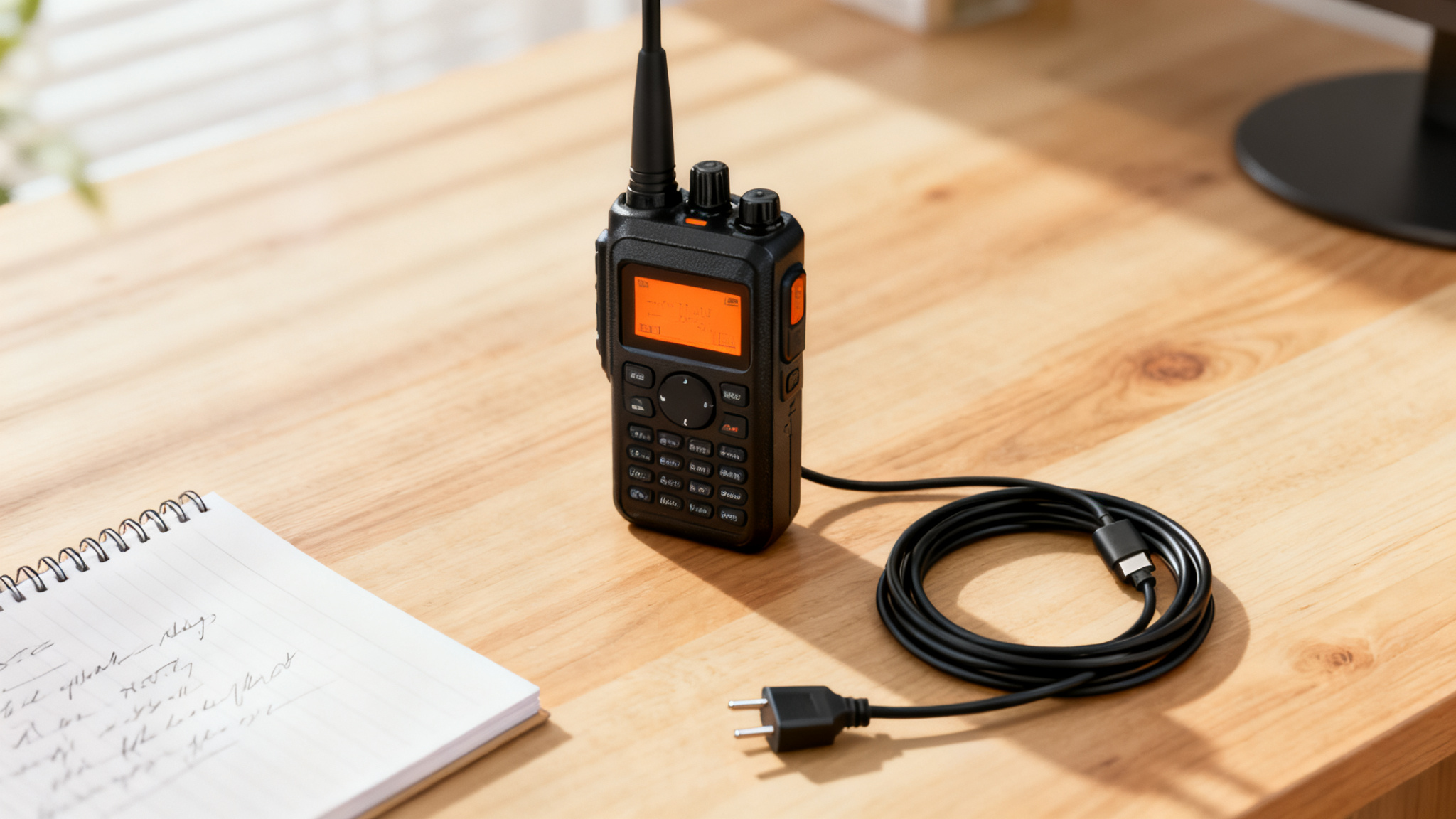
How to Program a Baofeng Radio With CHIRP
Here’s the whole process, start to finish.
1. Plug in the cable and find the port. Connect the cable to your computer first, then to the radio. Push the two-pin plug in firmly. Harder than feels polite. A half-seated plug is the number one reason CHIRP says the radio didn’t respond. Then turn the radio on with the volume up a little.
2. Download from the radio first. In CHIRP, go to Radio, then Download From Radio. Pick Baofeng as the vendor, choose your model (for example, UV-5R), and pick the port your cable is using. If you’re not sure which port it is, unplug the cable, look at the list, plug it back in, and see which one appears.
3. Save a backup straight away. Before you change a single thing, save that file somewhere safe. If anything goes wrong later, you can put the radio back exactly how it was. Think of it as the undo button the radio never gave you.
4. Enter your channels. Each row is one channel. The columns that matter:
- Frequency: the repeater’s output frequency, which is what you listen on.
- Name: a short label so you know what it is, like the repeater’s callsign or town.
- Tone Mode: set this to Tone for most repeaters.
- Tone: the tone number from your repeater list (such as 100.0). Repeaters use this like a secret knock. No knock, no answer.
- Duplex: plus or minus, which tells the radio whether to transmit above or below the listening frequency.
- Offset: how far above or below. In the US, that’s usually 0.6 MHz on 2 meters and 5 MHz on 70 centimeters.
5. Upload to the radio. Go to Radio, then Upload To Radio. Wait for the progress bar to finish, and don’t wiggle the cable while it’s working. Unplug, switch the radio to channel mode, and scroll through. Your channels should be there with their names.
A quick tip: if your repeater list is long, CHIRP can pull repeaters straight from RepeaterBook using Radio, then Query Source. You can import a whole area in one go and delete the ones you don’t want.
How to Program a Baofeng by Hand
No computer? No problem. It’s just slower. These steps are for the classic UV-5R. Other models use similar menus, but the numbers can shift around.
First, the key idea. Your radio has two modes. Frequency mode (also called VFO) lets you type in any frequency. Channel mode (also called memory mode) only shows the channels you’ve saved. The orange VFO/MR button flips between them. You set everything up in frequency mode, then save it to a channel.
Here’s how to add a repeater:
- Press VFO/MR to get into frequency mode, then type in the repeater’s frequency.
- Press MENU, go to 13 (T-CTCS), and set the repeater’s tone.
- Go to 25 (SFT-D) and set the direction to plus or minus.
- Go to 26 (OFFSET) and enter the offset, such as 00.600 for a 2 meter repeater.
- Go to 27 (MEM-CH), pick an empty channel number, and confirm to save it.
For each menu, you press MENU, type the number, press MENU again to edit, change the setting, then press MENU once more to confirm. Press EXIT to back out. It feels clunky because it is clunky. But once you’ve done it twice, it sticks.
When Things Go Wrong (Because They Will)
Nearly every Baofeng headache comes down to one of these:
- “Radio did not respond”: push the cable in harder, check you picked the right port, and make sure the radio is switched on with the volume up.
- The cable isn’t recognised at all: it’s probably a fake chip. Try a different driver or, better, a better cable.
- You can hear the repeater but it won’t hear you: check the tone first, then the offset direction. It’s almost always the tone.
- Your model isn’t in CHIRP’s list: newer Baofengs sometimes need the latest version of CHIRP. Update it before assuming the worst.
- Everything’s scrambled: load the backup file you saved in step 3 and upload it. Now you see why that step exists.
Your Next Step
Start small. Program three or four local repeaters and your area’s simplex calling frequency, then get on the air and try them. You’ll learn more from one conversation than from an hour of fiddling with menus. And if you haven’t picked your radio yet, our guide to the best Baofeng radios will point you to a good one.
One last reminder: you need an amateur radio licence to transmit on the ham bands. Listening is free for everyone. Talking takes a callsign.
Ready to Get On the Air?
Programming your radio is a big step, but it’s only one piece of the puzzle. Knowing what to say, which frequencies to use, and how to make that first contact without freezing up is where a lot of new hams get stuck.
That’s why we put together a free Ham Radio Quick-Start Checklist. It walks you through everything, from setting up your radio to making your first contact, in plain English with zero jargon. Grab your free copy and get on the air the right way.